Text Workflow
How to use
How to run a text transformation action or workflow?
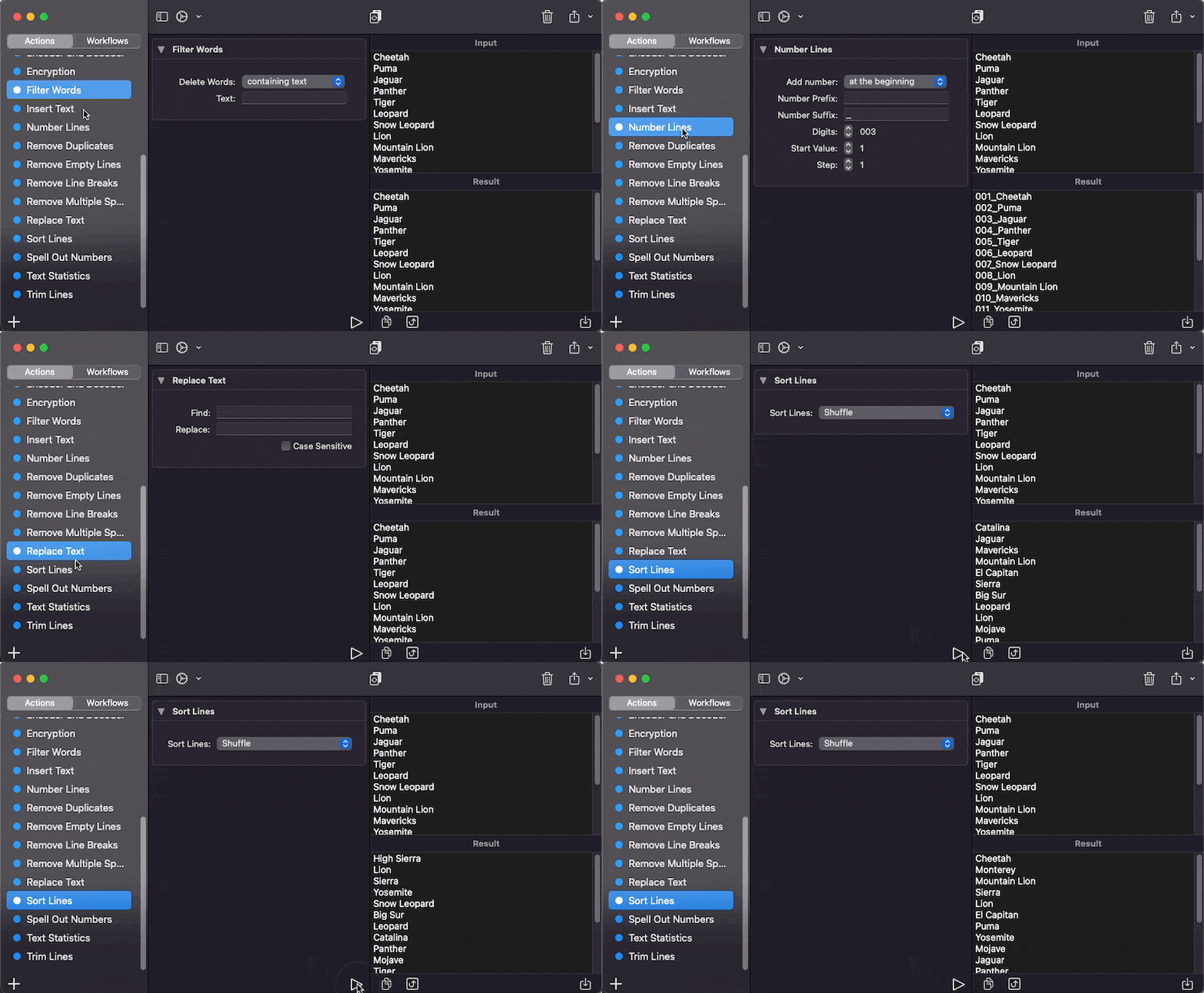
To run the action just select it from the sidebar of the app. Every time you change an action option or the input text, the app will run again the action and will update the result text.
You can also use the “Run action” button under the workflow details panel.
How to create a new workflow?
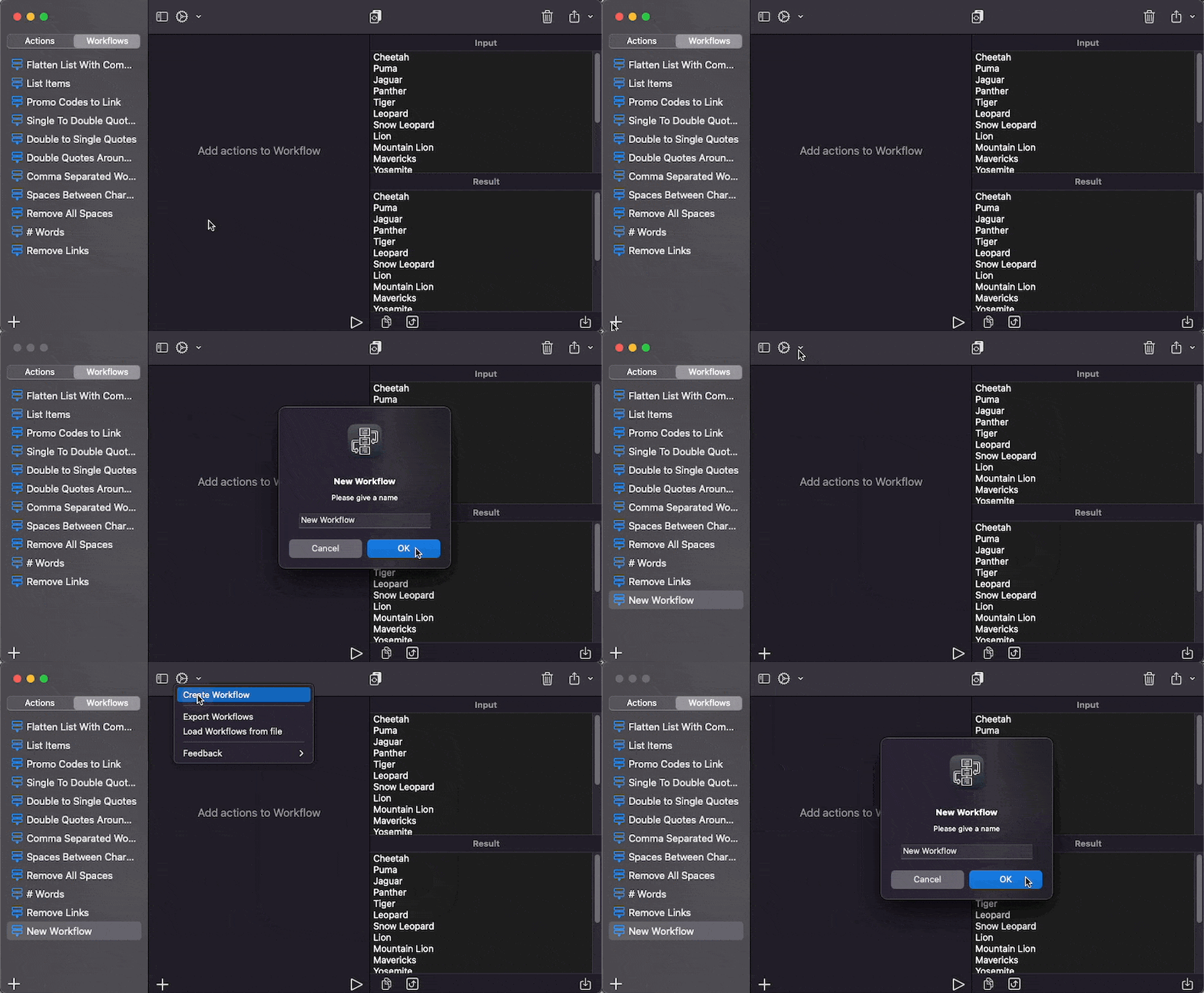
You can use the plus button under the sidebar to create the workflow.
You can also use the “Create Workflow” option on Action menu.
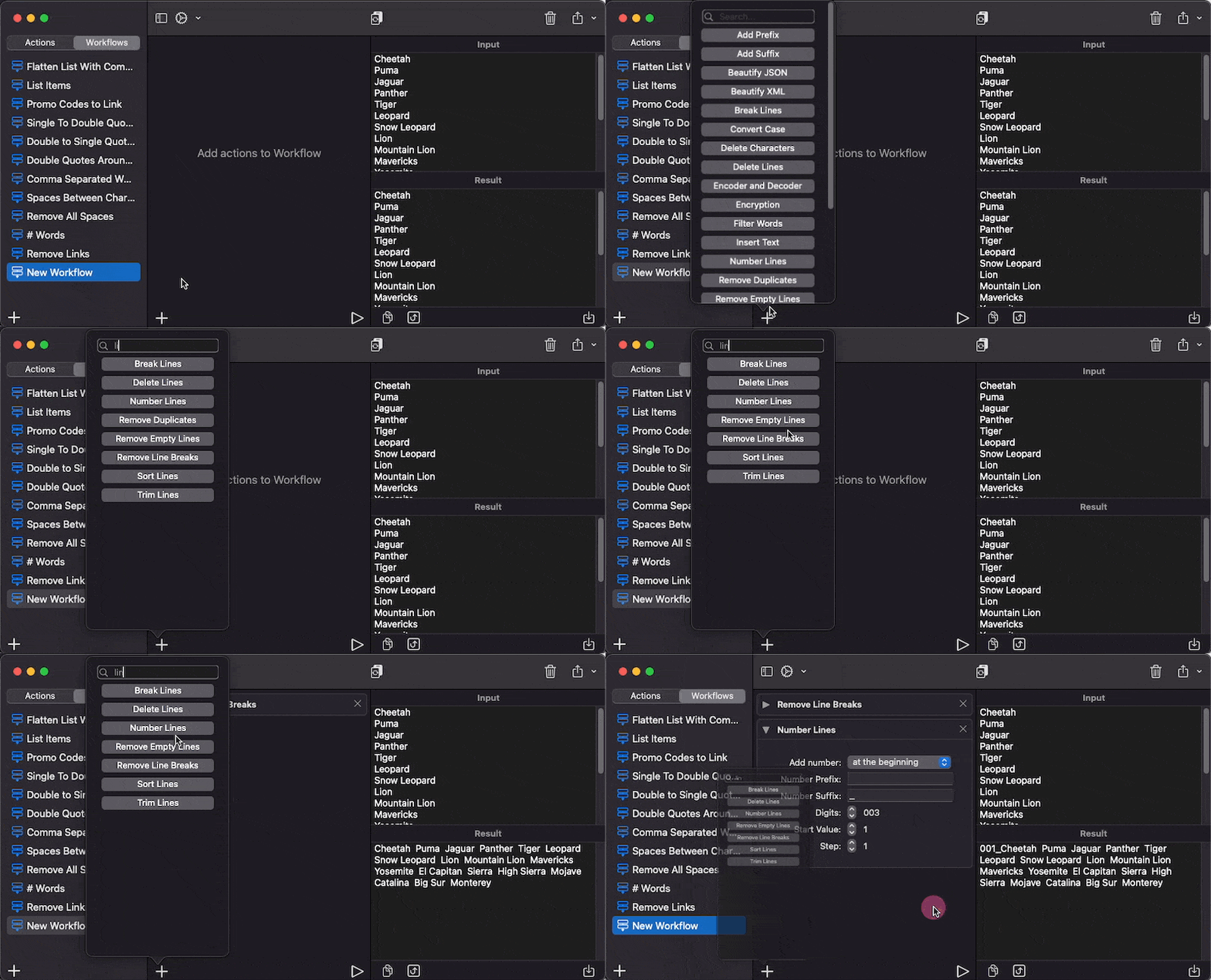
How to add action to a Workflow?
Use the Plus button under the workflow details panel. You will see a list of actions to choose. You can use the search field to find the action you want.
How to remove an action from the workflow?
To delete an action use the X button on action card.

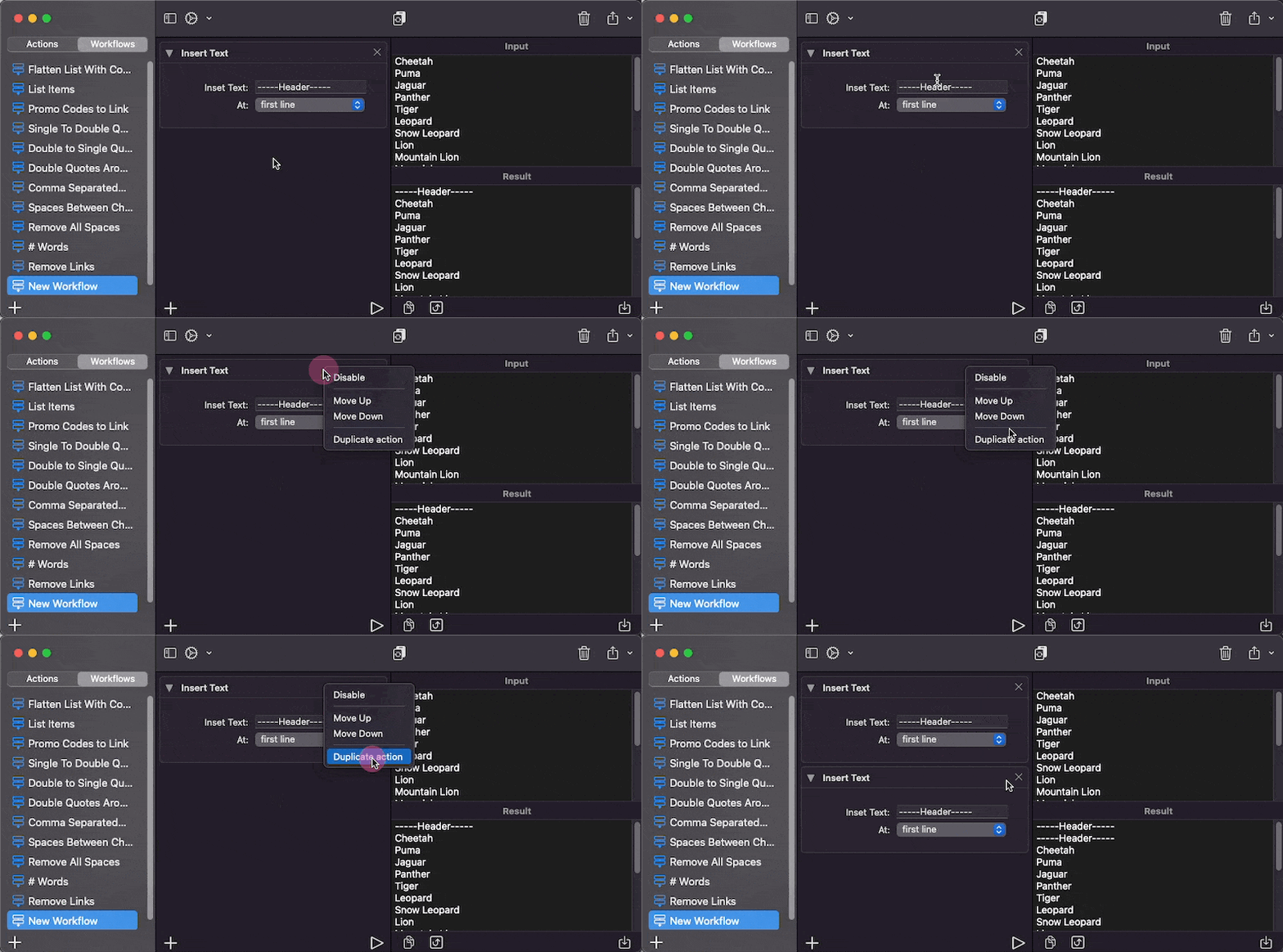
How to duplicate an action inside the workflow?
Yes, right click on the action to see the menu, and choose “Duplicate action”.
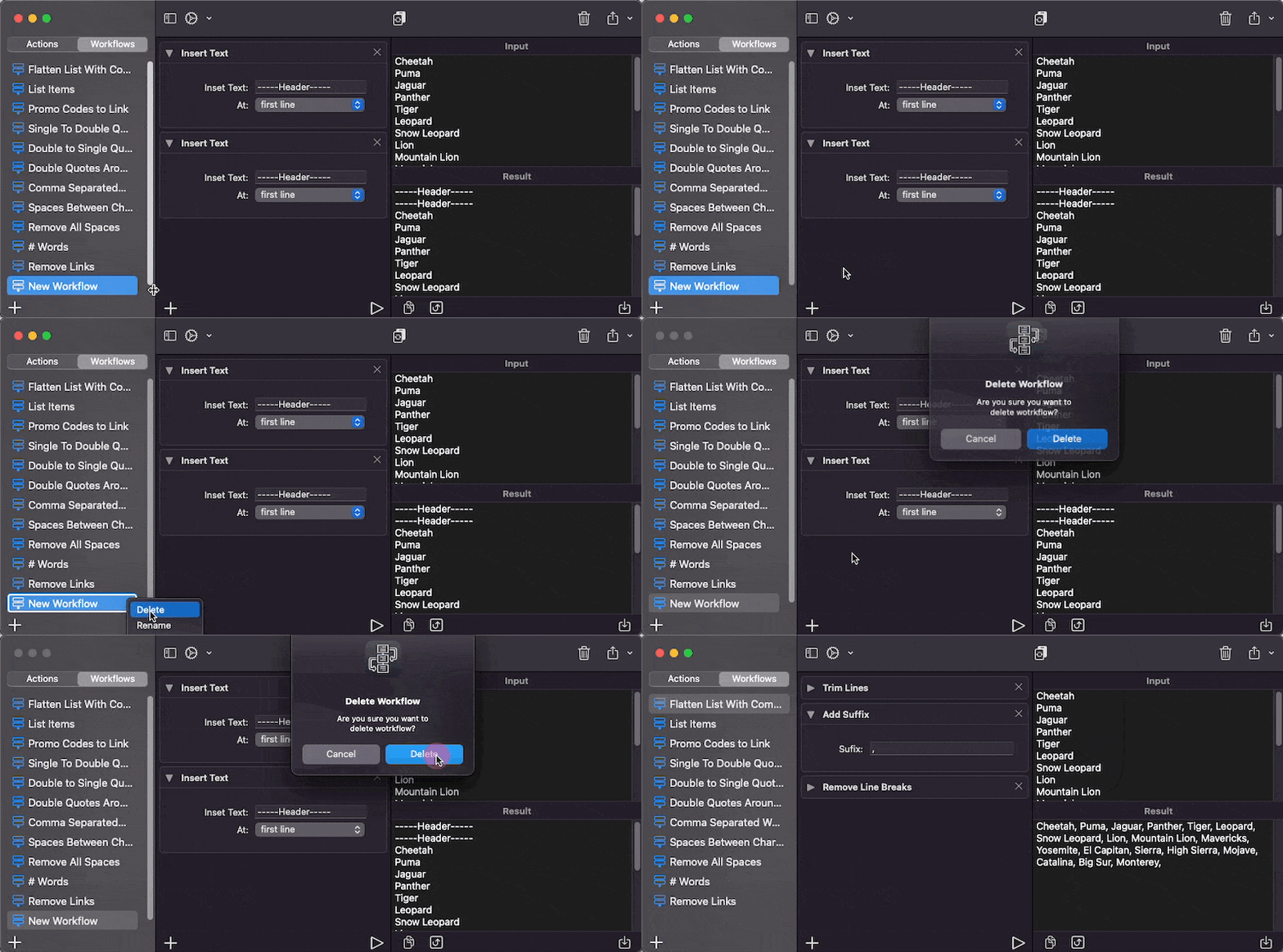
How to delete a workflow:
You can delete a workflow with right click on workflow name on sidebar, then choose “Delete workflow”
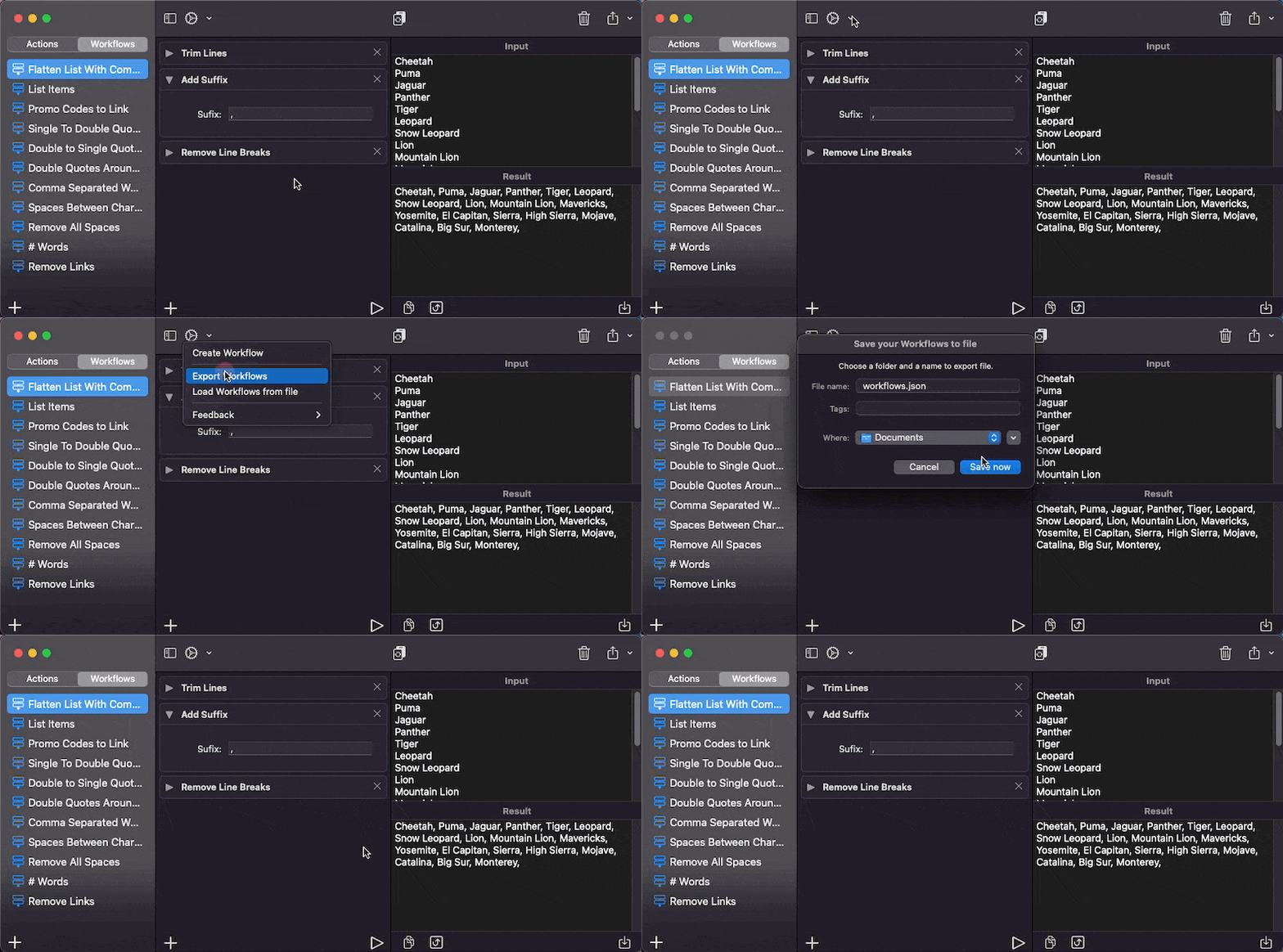
How to backup the workflows
You can export workflows with ”Export to file“ menu. App will create a json file with all workflows. You can load workflow from file with “Load workflow from file” menu option.
How to change the order of action inside a workflow.
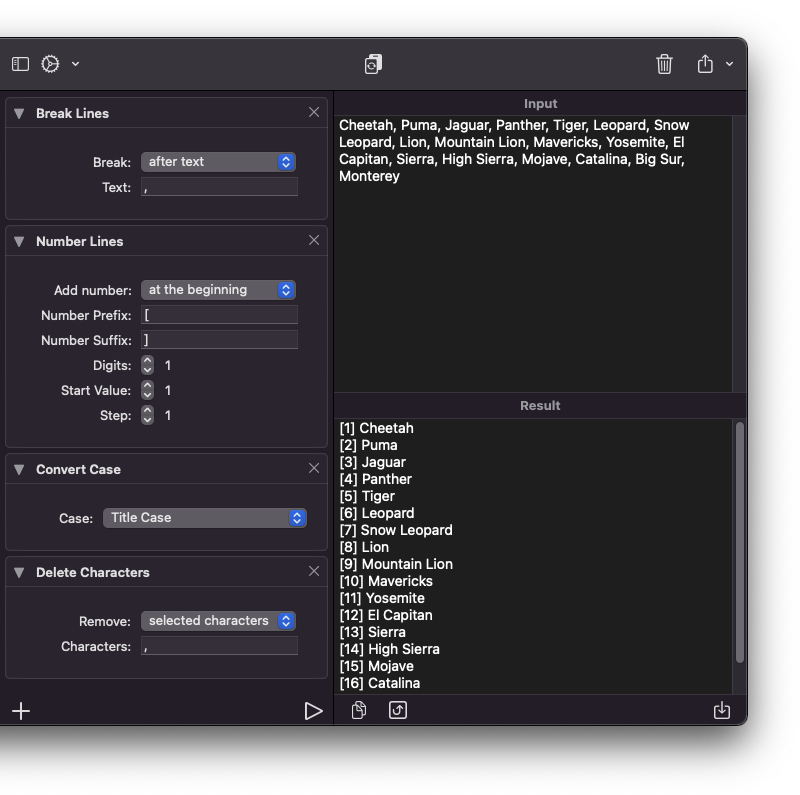
Order of action is important for the results of a workflow. You can change the order of the action with drag and drop or use “Move up”/“Move down” menu (right click on action to see the menu).
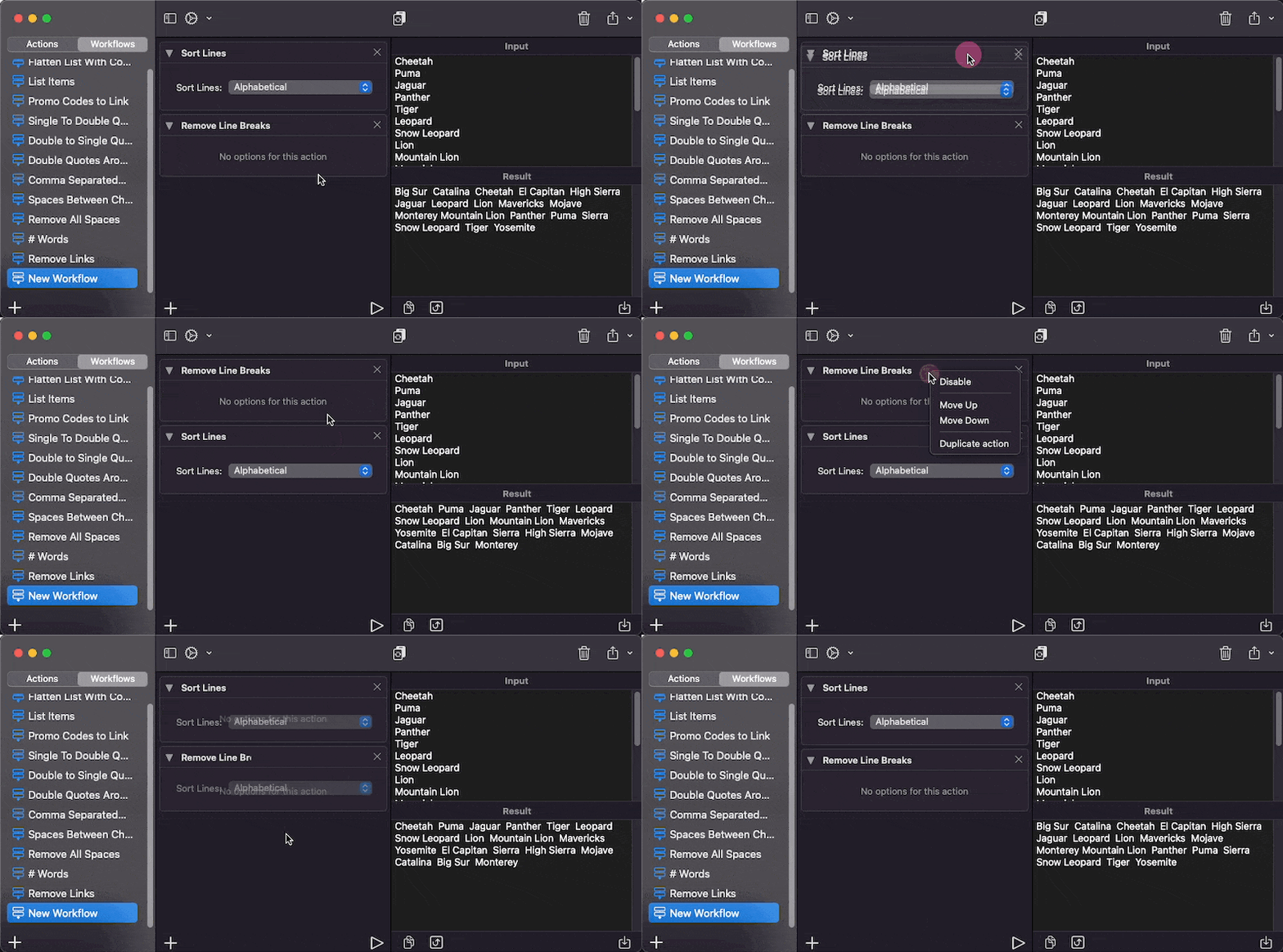
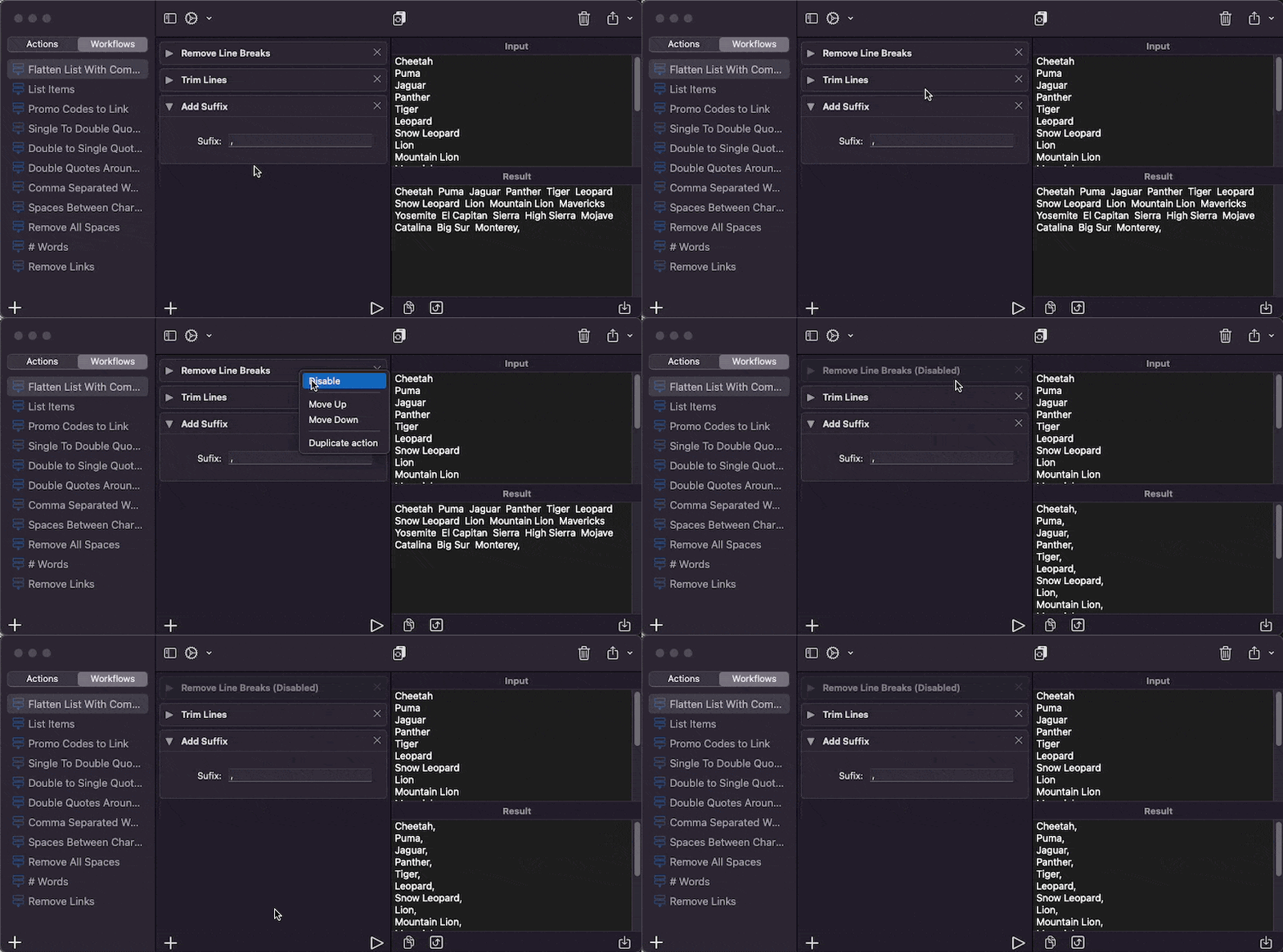
How to temporary disable an action and see the results.
Right click on an action and choose “Disable”.
How to duplicate a workflow.
Right click on the workflow name in sidebar to see the menu and choose “Duplicate workflow”.

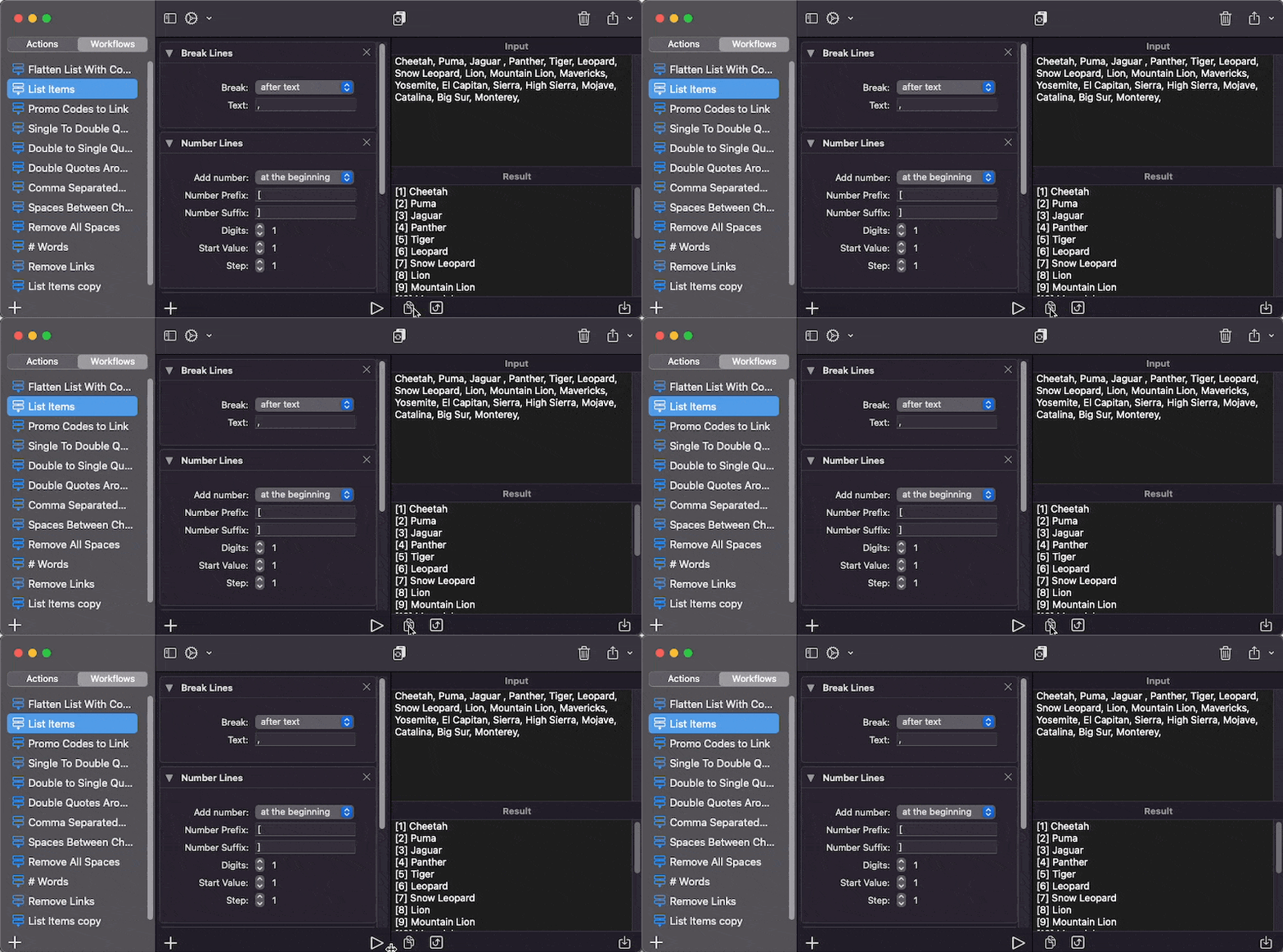
How to copy results?
Use the “Copy result” button, under the “Result” text.
You can also just select the text from the “Result” text and copy with right click or use Command-C keyboard shortcut.
How to save result to a file txt?
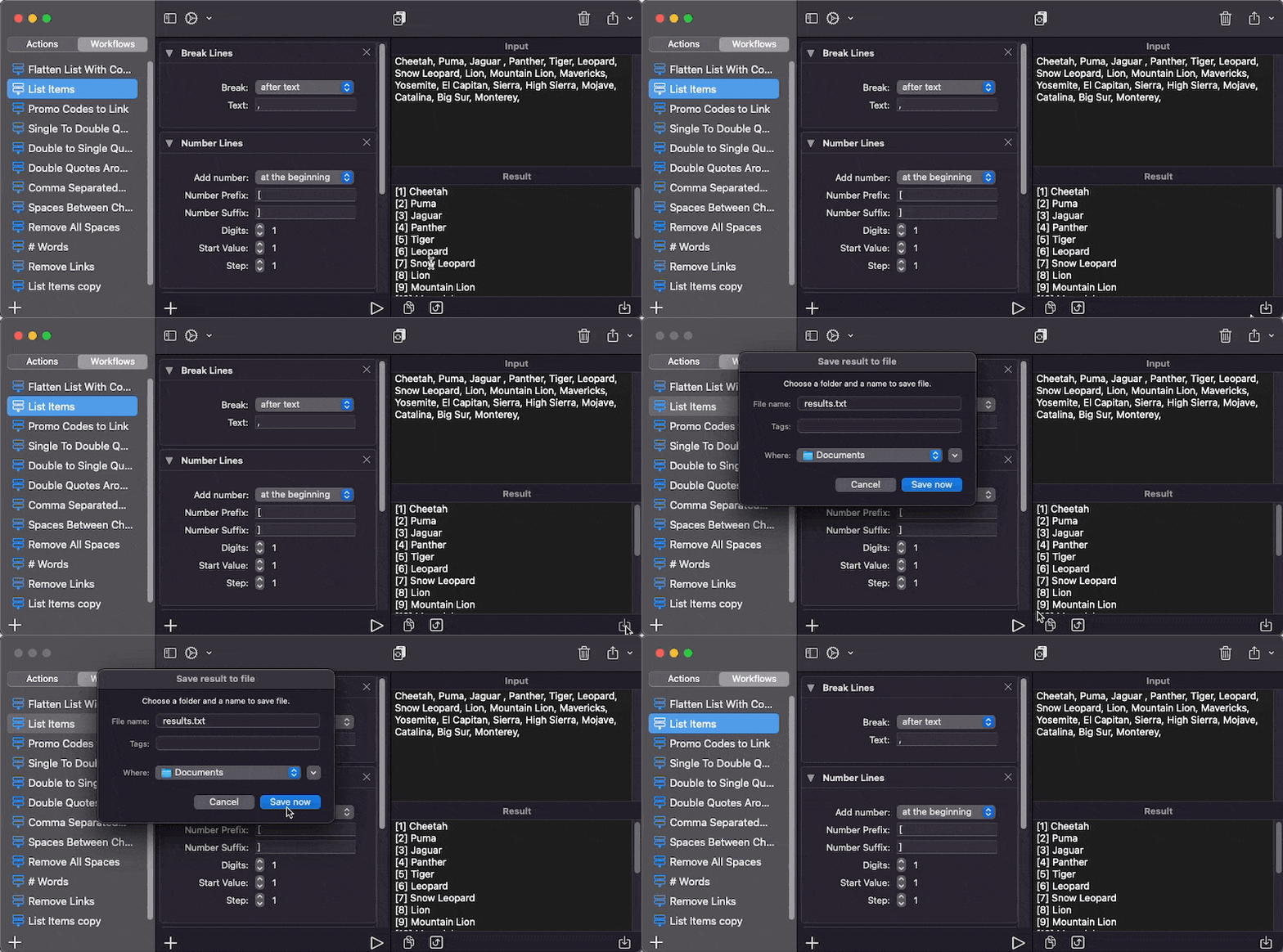
To save the result text use the “Save result to file” button, located under the result text.