Text Workflow 2.0
Let’s see what is new on version 2.0 of Text Workflow app
Workflow Management
On version 2.0 there is a new toolbar button on the main app window that you can use to access the new Workflow options panel.

On the option panel you can set:
Workflow name
Add a description with notes of what this workflow can do for you
Option to make the description always visible on the top of Workflow editor.
Option to add workflow to favorites (more on this later)
Choose an icon for your workflow
Choose a color for the icon
Option to apply workflow to either the entire input text or specific parts based on criteria like regular expression matches.
Set a keyboard shortcut to run workflow. With the shortcut, you can call workflow from any app. The workflow will transform the text on your clipboard
Favorites Workflows
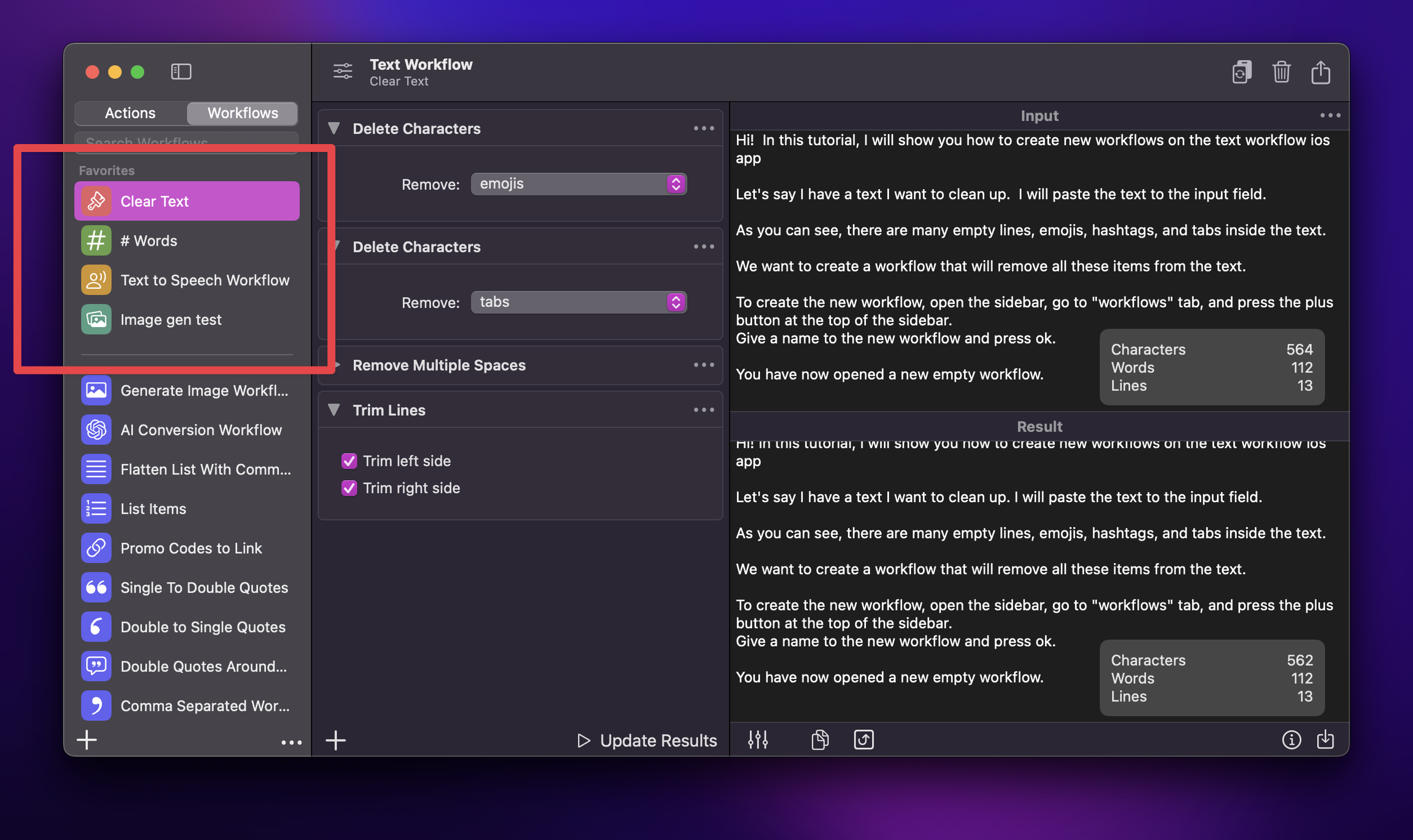
You can now set your favorite workflows. If you mark some workflows as favorites you will see a new “Favorites” section on top of your workflow list. You can add a workflow to favorites by right-clicking on the workflow item in the sidebar or using the option on the Workflows Option panel.
Partial Text Processing
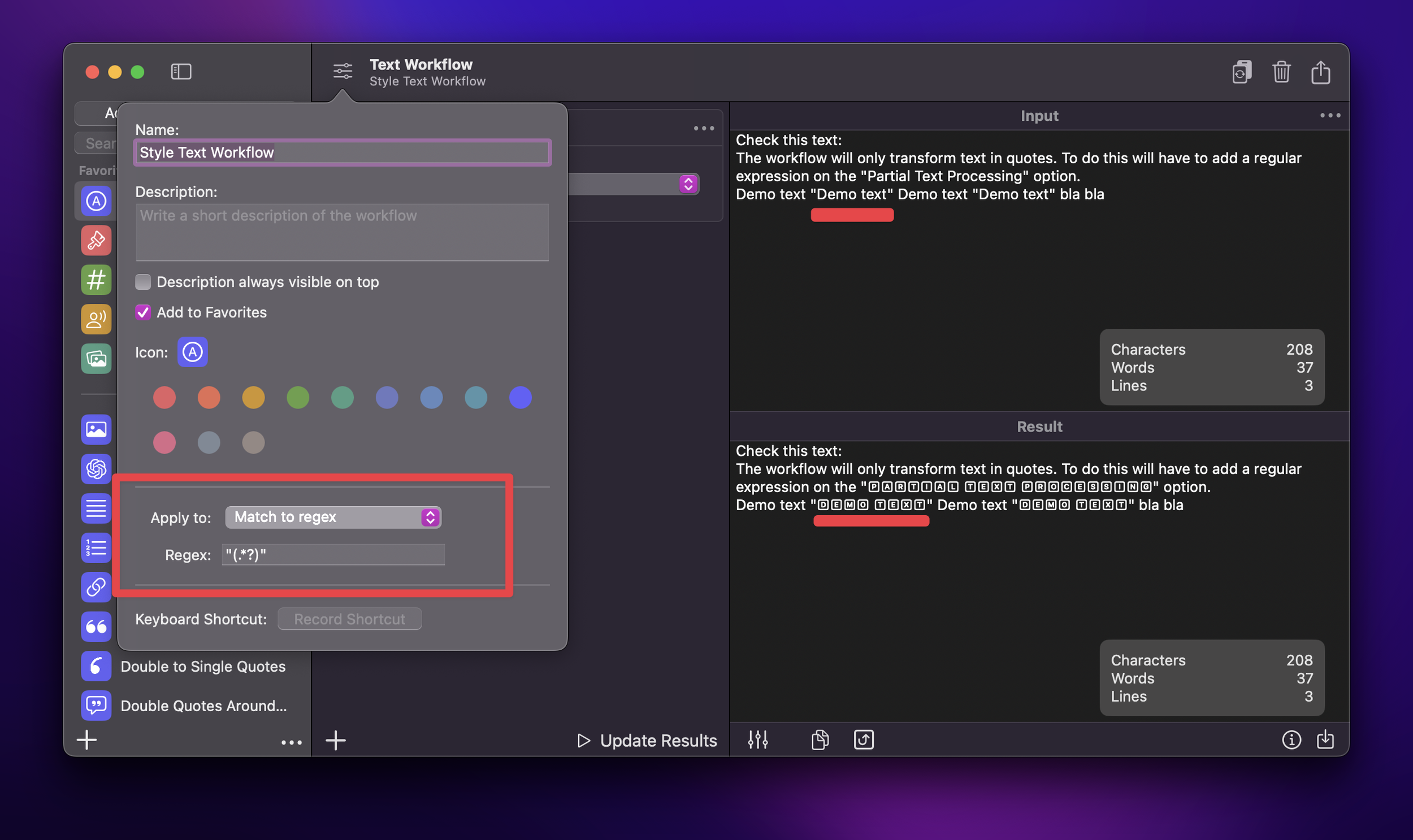
As I've already said on previous section, on workflow option panel we can set if we want to apply the workflow to the entire input text or some parts. I call this feature “Partial Text Processing”.
You can choose to apply the text processing to:
Only first line
Only last line
Lines starting with text
Match to regex
Nested Workflows
You can now call a workflow from another workflow! This way you can reuse your custom workflows like simple actions.
To call another workflow just add the new Text action “Call Workflow“. On this action, you can choose the workflow that you want to call.

New AI-Powered Actions
If you have an OpenAI API key you can use the new AI action of Version 2.0
Generate Image from Text
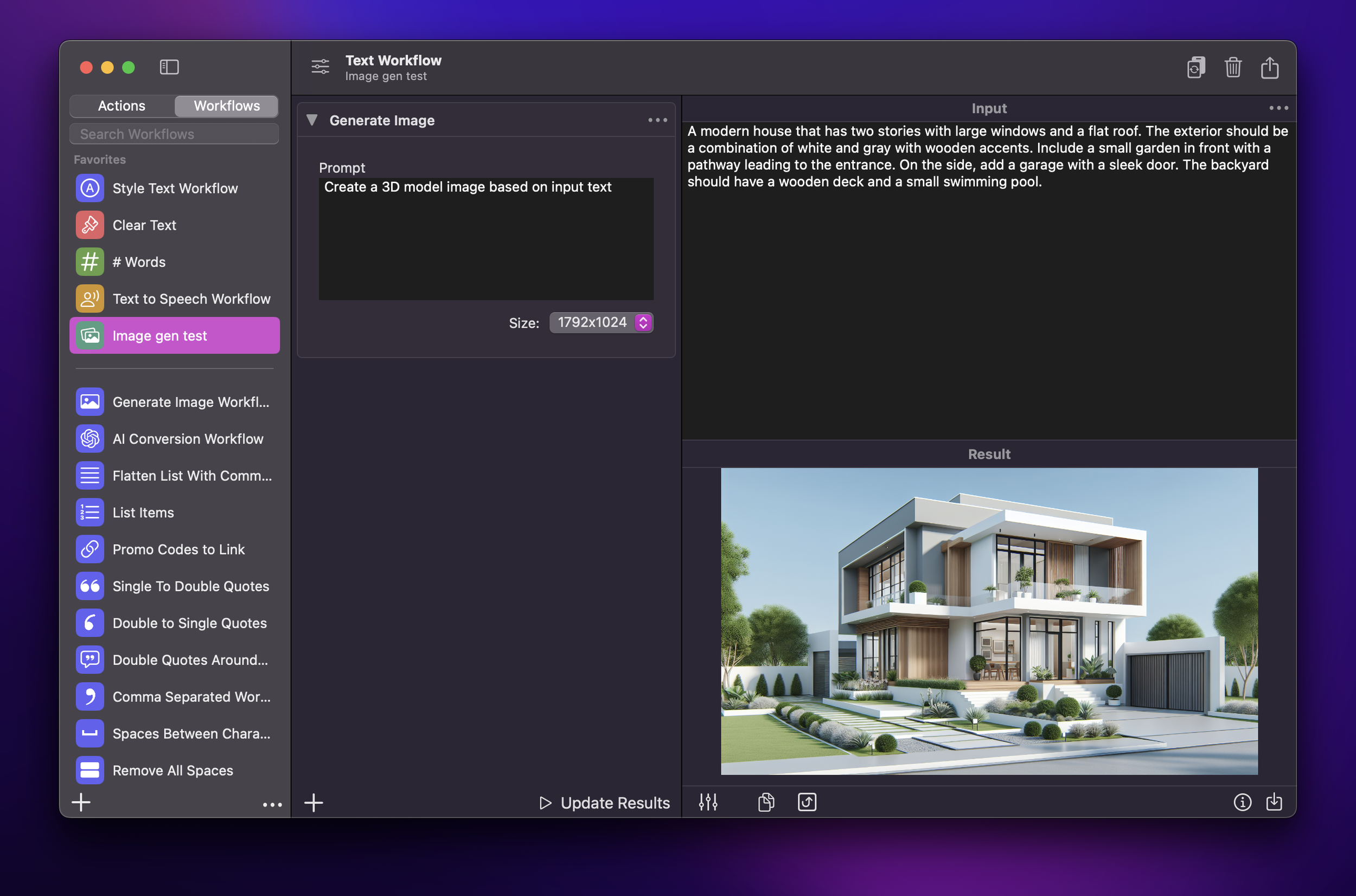
This action will generate an image based on the input text and the prompt of the workflow. You can set image dimensions. To export the image you can use the “Save results“ button, which will save a copy of the image to the selected location, or use the copy button that will add the image to the clipboard.
Text to Speech
This action will use the OpenAI text to speech capability to generate an audio file from the input text. You can choose AI model, Voice and set the speed.
GPT-4o Support
This version also adds support for GPT-4o model on AI Transformation action. GPT-4o model can give results more than two times faster. You can now choose between these 3 models:
GPT-4
GPT-4o
GPT-3.5
Other New Text Processing Actions
Remove Markdown:
This action will strip any markdown symbols from your text to leave plain text. You can choose what type of markdown symbols you want to remove. The available options are:
Remove Headers
Remove Emphasis (bold, italic)
Remove Lists
Remove Horizontal Rules
Remove Block Quote
Remove Code Blocks
Repeat Text
Repeat the input text a specified number of times with a custom delimiter.
Remove Line Numbers
Removes line numbers from the beginning of each row
Math Calculations
Automatically evaluate math expressions within your text (e.g., (5+7)/2 returns 6).
Reading Time
Estimate the reading time for your text, customizable by words per minute.
Text Styling Options
Style Text Action: Now includes additional styles:
Monospace
Cursive
Gothic
Fullwidth
Improved Text Trimming Options
Trim Left Side: Remove whitespace only from the left side of each line.
Trim Right Side: Remove whitespace only from the right side of each line.